5 Effective Ways to Make Your Old MacBook Faster
An Apple MacBook is widely recognized for its durability and long lasting performance. Its aluminum build, dependable hardware, and extended macOS software support help many models stay useful for years. Since 2020, the introduction of Apple’s M series chips has further boosted speed and energy efficiency in newer MacBooks.
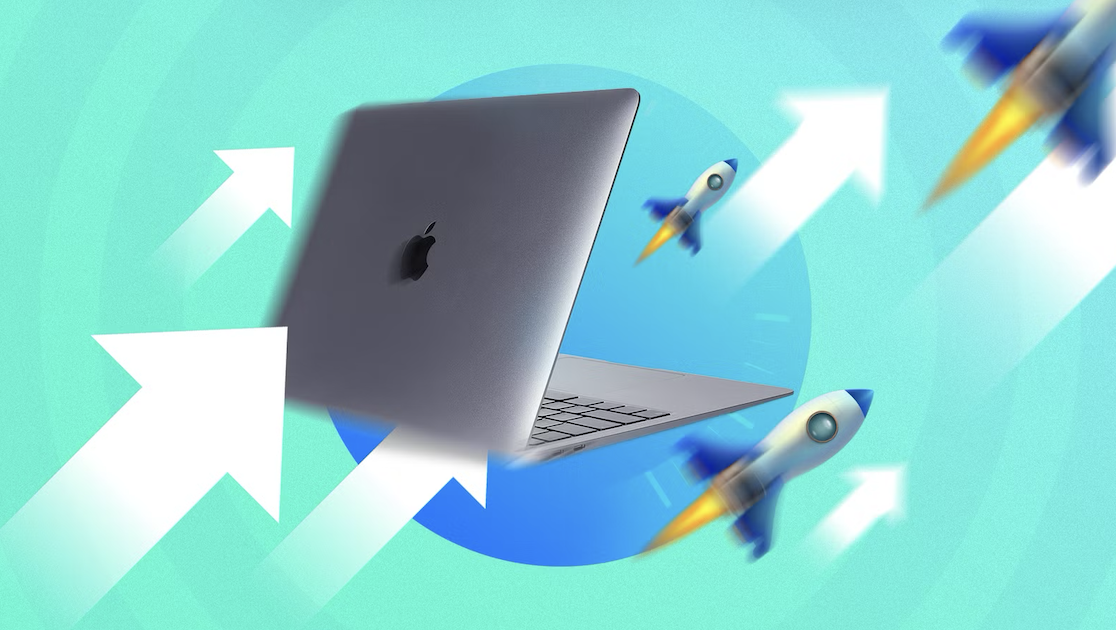
However, even a well built MacBook can slow down over time. Before spending money on a brand new laptop, there are several practical ways to boost performance and make your older MacBook run more smoothly again.
Below are five proven methods to speed up your aging MacBook.
1. Keep Your MacBook Clean and Cool
One major reason older laptops slow down is overheating. When your MacBook becomes too hot, the processor may reduce its performance to prevent damage.
Always place your MacBook on a firm, level surface to keep it cool. Don’t use it on beds, pillows, or blankets that could block airflow, and ensure that its vents remain unobstructed.
Dust and debris can accumulate inside vents and the keyboard over time, trapping heat inside the laptop. Cleaning the device regularly with a soft, lint free cloth helps keep it in good condition. More experienced users may also remove dust from internal fans using trusted guides from organizations like iFixit.
Keeping your MacBook cool ensures the processor can run at full speed without performance throttling.
2. Remove Unnecessary Apps
Unused apps can consume valuable system resources, including CPU power, memory, and storage space. This can significantly slow down your computer.
To identify resource-heavy apps, open Activity Monitor on your Mac. This tool shows which applications are using the most CPU or RAM.
Common culprits include browsers with too many tabs or extensions. Closing unused tabs and disabling unnecessary browser add ons can instantly improve performance.
You should also:
- Quit apps running in the background
- Delete applications you rarely use
- Stop unnecessary apps from launching at startup
To manage startup programs, open System Settings → Login Items and remove apps you don’t want opening automatically.
3. Free Up Storage Space
Storage clutter can also slow down a MacBook, especially if your device has only 128GB or 256GB of storage.
Open System Settings → Storage to see what is taking up space on your laptop. You may discover large files such as photos, videos, or backups that are filling the drive.
To free up space:
- Delete unused files and applications
- Move photos or videos to an external drive
- Store documents in cloud services like iCloud
macOS also offers built in tools like Optimize Storage and Automatic Trash Emptying to help manage files more efficiently.
Keeping sufficient free space on your SSD allows macOS to run faster and more smoothly.
4. Reinstall macOS for a Fresh Start
If your MacBook still feels sluggish after cleaning apps and storage, a clean installation of macOS can help.
Over time, system caches, outdated settings, and leftover files from old apps can affect performance. Reinstalling macOS removes these issues and restores the system to a clean state.
Before doing this, always back up your files using Time Machine or another backup solution.
Advanced users often recommend reinstalling apps manually rather than restoring the entire system backup, as this prevents old software problems from returning.
5. Run macOS from an External SSD
If your internal storage is too small or aging, another option is installing macOS on an external SSD.
External solid-state drives are often faster than older internal drives and provide much more storage capacity. You can create a bootable macOS drive and run your MacBook directly from it.
However, this solution has some downsides:
- You must always carry the external drive with your laptop
- The SSD must remain connected while using the MacBook
- Losing the drive could affect access to your system
Despite these drawbacks, it can dramatically improve performance on older machines with limited storage.
Final Thoughts
Even though MacBooks are designed to last for years, performance naturally declines with age. Fortunately, simple steps like cleaning the device, removing unnecessary apps, freeing storage space, reinstalling macOS, or using an external SSD can breathe new life into an older laptop.
If your MacBook is nearly a decade old, these tips may still extend its usability for several more years, saving you money while keeping your workflow smooth and efficient.