
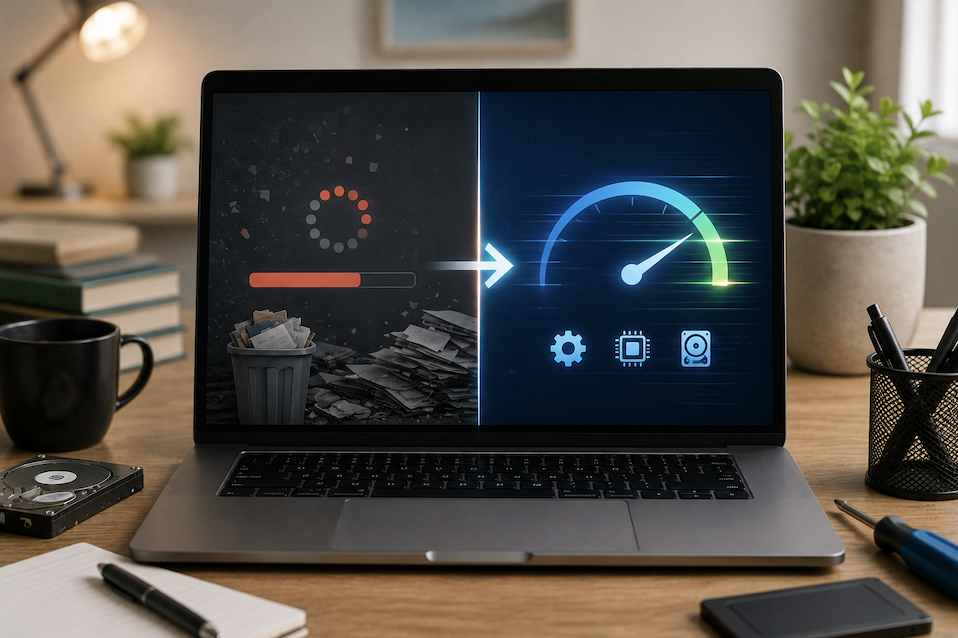
A computer that once felt fast and responsive gradually slowing down over months or years is one of the most common frustrations people experience with their devices, and it often leads to an expensive, sometimes unnecessary decision to simply buy a new one. Before reaching that conclusion, it is worth working through the genuine, common causes of a slow computer, most of which can be diagnosed and fixed without spending anything at all. This guide walks through a practical, systematic approach.
Why Computers Actually Slow Down Over Time
Understanding the common underlying causes of slowdown helps you target your troubleshooting effectively rather than guessing randomly. Computers rarely slow down due to a single dramatic cause, and it is much more common for several smaller issues to accumulate gradually over months of regular use.
The most frequent culprits include too many programs running simultaneously in the background, a storage drive that has become nearly full, accumulated temporary files and unnecessary startup programs, outdated software or drivers, and in some cases, malware or unwanted software that consumes system resources without your knowledge. Identifying which of these actually applies to your specific situation is the genuinely important first step before attempting any fixes.
Step One: Check What Is Actually Running in the Background
Open your operating system’s built-in task manager or activity monitor and observe which programs are consuming the most memory and processor resources at any given moment. It is common to discover several programs running in the background that you were not actively using, or were not even aware had launched automatically.
- Identify programs consuming unusually high memory or processor resources
- Close unnecessary background applications you are not actively using
- Note which programs seem to consistently consume resources even when idle
- Pay particular attention to browser tabs, since many open tabs can accumulate significant memory usage
Browser tabs deserve specific attention here, since it is remarkably easy to accumulate dozens of open tabs over the course of a day, each consuming a small amount of memory that adds up considerably across an entire browsing session.
Step Two: Review and Disable Unnecessary Startup Programs
Many programs install themselves to automatically launch every time your computer starts, gradually accumulating over months or years of installing new software. Each additional startup program adds to the time your computer takes to become fully responsive after booting, and continues consuming resources in the background afterward.
- Access your operating system’s startup program settings to see the full list of automatically launching software
- Disable startup programs you do not need running constantly in the background
- Keep essential security software enabled, but disable convenience features you rarely use
- Reassess this list periodically, since new software installations often add themselves without clear notification
Step Three: Check Your Available Storage Space
A storage drive that has become nearly full can meaningfully slow down overall system performance, particularly for the type of drive still commonly found in many computers that relies on having adequate free space to operate efficiently. Check how much storage space remains available and consider what can reasonably be removed or moved elsewhere.
- Check your storage drive’s available capacity through your operating system’s storage settings
- Remove large files you no longer need, particularly old downloads and duplicate files
- Consider moving large media files, like videos and photo libraries, to external storage
- Uninstall programs you no longer use rather than simply leaving them installed indefinitely
Aiming to keep at least ten to fifteen percent of your total storage capacity free is a reasonable general guideline, since operating systems often need this working space for temporary files and system operations to run smoothly.
Step Four: Clear Accumulated Temporary Files and Cache
Over time, computers accumulate temporary files, cached data, and other digital clutter that served a purpose once but no longer provides any ongoing benefit. This accumulated clutter can consume meaningful storage space and, in some cases, contribute to slower performance.
- Use your operating system’s built-in disk cleanup or storage management tools
- Clear browser cache and temporary internet files periodically
- Empty your recycle bin or trash folder, which does not happen automatically
- Consider clearing application-specific cache files for programs you use heavily
Step Five: Update Your Operating System and Drivers
Outdated software, particularly your operating system and hardware drivers, can contribute to performance issues, security vulnerabilities, and compatibility problems that manifest as general slowness or occasional freezing. Software updates frequently include genuine performance improvements and bug fixes alongside security patches.
- Check for and install any pending operating system updates
- Update device drivers, particularly for your graphics card and other major components
- Keep frequently used applications updated to their latest versions
- Restart your computer after major updates, since some changes only take effect after a restart
Step Six: Scan for Malware and Unwanted Software
Malware and unwanted software can consume significant system resources without your knowledge, sometimes running background processes specifically designed to avoid detection while still meaningfully affecting performance. Running a thorough security scan is a genuinely important step that is easy to overlook when troubleshooting a slow computer.
- Run a full system scan using reputable, updated antivirus or security software
- Check your list of installed programs for anything unfamiliar or that you do not remember installing
- Review browser extensions specifically, since unwanted extensions are a common source of hidden resource consumption
- Consider a specialized malware removal tool in addition to standard antivirus software for a more thorough check
Step Seven: Consider Hardware Upgrades if Software Fixes Are Not Enough
If working through the previous steps does not meaningfully improve performance, the underlying issue may genuinely be hardware limitations rather than something software-related. Certain upgrades offer considerably better value than others for improving an aging computer’s real-world performance.
- Upgrading to a faster storage drive often provides the most noticeable overall performance improvement
- Adding more memory helps significantly if your computer struggles when running multiple programs simultaneously
- Consider whether your specific performance complaints suggest a storage, memory, or processor limitation
- Weigh upgrade costs against the price of a new computer, since older hardware sometimes has diminishing returns
Step Eight: Consider Whether Your Web Browser Itself Needs Attention
For many people, the vast majority of daily computer use happens entirely within a web browser, which means a browser that has accumulated years of extensions, cached data, and open tabs can become a genuinely significant, and easily overlooked, contributor to overall perceived slowness, even when the rest of the computer is performing reasonably well.
Reviewing installed browser extensions specifically is worth dedicated attention, since many people install extensions for a one-time purpose and then forget about them entirely, leaving them running continuously in the background for months or years afterward. Each additional extension adds some amount of resource consumption and potential performance overhead, and a browser with dozens of unused extensions can meaningfully drag down overall responsiveness even on otherwise capable hardware.
- Review and remove browser extensions you no longer actively use or remember installing
- Clear browser cache and cookies periodically, since these can accumulate significant volume over time
- Consider whether you genuinely need multiple browsers installed and running simultaneously
- Restart your browser periodically rather than leaving it running continuously for weeks without a fresh restart
Final Thoughts
A slow computer is rarely caused by one single dramatic problem, and working through these steps systematically, starting with background programs and startup software before moving to storage, updates, and security scans, resolves the underlying cause for most people without requiring any hardware purchase at all. If performance still lags noticeably after completing every step, a targeted hardware upgrade, rather than a full replacement, often provides excellent value for extending your computer’s useful life considerably further.
- Read more about Techsipra!
Frequently Asked Questions
1. How often should I clean up temporary files and unnecessary programs?
A quarterly check is a reasonable general habit for most users, though if you install and uninstall software frequently or download large files regularly, a monthly review may help maintain more consistent performance over time.
2. Will restarting my computer regularly actually help with performance?
Yes, genuinely. Restarting clears accumulated temporary data from memory and allows the system to close background processes that may have been running longer than intended, which is why many performance issues improve noticeably after a restart.
3. Is it worth paying for third-party cleanup or optimization software?
Most genuinely useful cleanup tasks can be accomplished using your operating system’s built-in tools without additional cost, and some third-party optimization software makes exaggerated claims or, in worse cases, includes its own unwanted software bundled alongside it.
4. How do I know if my slow computer needs a hardware upgrade versus a software fix?
If your computer struggles specifically when running multiple demanding programs simultaneously, additional memory often helps. If everything feels generally sluggish, including simple tasks, a faster storage drive frequently provides the most noticeable improvement.
5. Why does my computer seem to get slower the longer I have owned it?
This typically results from a gradual accumulation of installed software, startup programs, temporary files, and browser extensions over time, rather than any single dramatic cause, which is exactly why a systematic cleanup often restores considerable performance.