

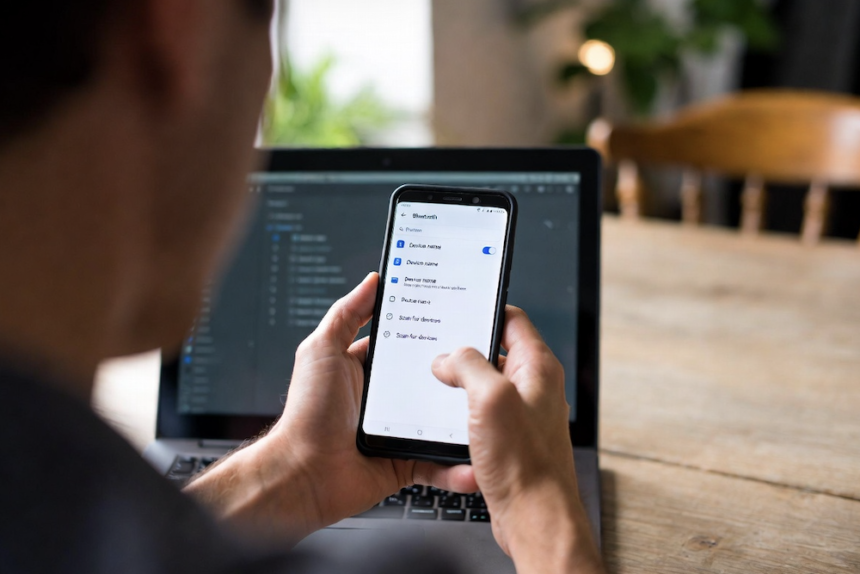
Nothing is more frustrating than tapping “pair” on your Android phone, only to watch the spinner spin forever. You want to listen to music, take a call in the car, or share a file, but Bluetooth just refuses to cooperate. You are not alone. This problem happens to almost every Android user at some point. The good news is that in most cases, you can fix it yourself in under five minutes without visiting a repair shop. In this guide, I will walk you through exactly how to fix Bluetooth not working on Android using simple, step-by-step methods. We will start with the fastest tricks and move to deeper solutions. By the end, your headphones, speaker, or smartwatch will connect like new again.
1. Start With the Classic Airplane Mode Toggle
Before you try anything complicated, use the oldest trick in the book: turning Airplane mode on and off. This resets all your phone’s wireless connections, including Bluetooth, Wi-Fi, and mobile data. Sometimes, a tiny software glitch blocks the Bluetooth signal. Turning this on removes the temporary block right away.
Swipe down from the top of your screen and tap the airplane icon to enable Airplane Mode. Wait about ten seconds. Tap it once more to switch it off. Now try to connect your Bluetooth device again. You will be surprised how often this simple move fixes the problem. It works because it forces your phone to reload all wireless drivers without restarting the whole system. Think of it as a mini-reset for your radios. If this works, you are done. If not, do not worry. The next steps are simple, too.
2. Turn Bluetooth Off and On Again (The Right Way)
You might think you have already tried this, but most people do it too fast. Simply tapping the Bluetooth icon off and on in one second does not give the system time to fully shut down the Bluetooth service. You need to be more deliberate. Go to Settings, tap Connections, then choose Bluetooth. Toggle the switch to “Off.” Then wait a full thirty seconds. This pause allows your phone to completely close all Bluetooth-related background processes. After thirty seconds, toggle it back to “On.” Now scan for devices again.
Why does waiting matter? When you turn Bluetooth off for a split second, the phone’s memory still holds onto old connection data. A thirty-second break forces that memory to clear. This method is especially useful if your phone shows “Saved” or “Connecting” but never actually connects. It gives your Android a clean slate to start a fresh handshake with your headphone or speaker. Many users report that this simple pause solves the issue instantly.
3. Forget and Re-Pair the Problem Device
Sometimes your phone remembers a device too well. It holds onto old pairing information that no longer matches what the device expects. This causes a mismatch, and the connection fails. The solution is to make your Android “forget” that device completely and then pair it again, like it is brand new. This is one of the most reliable ways to fix Bluetooth not working on Android when a specific device will not connect.
Go to Settings > Connections > Bluetooth. Find the device that is creating the problem. Tap the gear icon next to it in Settings. Select “Forget” or “Unpair.” Confirm your choice. Now put your Bluetooth device into pairing mode (usually by holding its power button or a dedicated pairing button until a light flashes). Back on your phone, tap “Pair new device” and select your device from the list. Follow any on-screen prompts. This fresh pairing often clears up encryption mismatches, outdated profiles, and corrupted caches. It is like reintroducing two friends who had a small misunderstanding.
4. Restart Your Android Phone Completely
A full phone restart does more than just turn the screen off and on. It closes every running app, clears temporary system files, and reloads the operating system from scratch. If a background app is blocking Bluetooth, or if a system service has crashed, a restart is the only way to fix it without deleting data. Do not confuse this with simply locking your screen. You need a full power cycle.
Hold the power button until the Restart or Reboot option appears. If your phone asks, choose Restart. Wait for the phone to fully turn off and then boot back up. Once you see your home screen, give it about thirty seconds to load all background services. Then open Bluetooth settings and try to connect. This method fixes countless Bluetooth issues caused by memory leaks, driver crashes, or app conflicts. It is free, takes less than two minutes, and has no downside. Make this your go-to step before trying anything more technical.
5. Check for Android System Updates
Google and phone manufacturers like Samsung, OnePlus, and Google regularly release updates that fix known Bluetooth bugs. If you have not updated your phone in a few months, you might be running software with a glitch that has already been patched. Checking for updates is simple and could save you hours of frustration. Many users skip this step because they assume updates are only for new features, but stability fixes are just as important.
Open Settings, select Software Update, and press Download and Install. If an update is available, install it over Wi-Fi (make sure your battery is above 50%). After the update completes, your phone will restart automatically. Once it boots up, test your Bluetooth connection. Even if no update is available, this check gives you peace of mind. You will know that your software is not the culprit. Manufacturers often release “point updates” (like version 12.0.1) that specifically target Bluetooth stability. Missing one of these small updates can leave you stuck with a problem that has already been solved for other users.
6. Clear the Bluetooth App Cache and Data
Your Android phone has a hidden system app called “Bluetooth” or “Bluetooth Share” that manages all connections. Like any app, it stores temporary files (cache) that can become corrupted. When this happens, the app might freeze, crash, or refuse to pair. Clearing the cache removes these corrupted files without deleting your paired devices list. If that does not work, clearing the data resets the app to factory condition, which will remove all paired devices but often fixes deeper issues.
Go to Settings > Apps > Show system apps (you may need to tap three dots or “Show system”). Scroll to find “Bluetooth” or “Bluetooth Share.” Tap on it. Select “Storage.” First, tap “Clear Cache.” Restart your phone and test Bluetooth. If the problem remains, go back and tap “Clear Data” or “Manage Space” then “Clear All Data.” Confirm your choice. After clearing data, you will need to pair your devices again from scratch. This step sounds technical, but it is just a few taps. It is incredibly effective for fixing “Bluetooth keeps stopping” errors or when your phone refuses to discover new devices.
7. Turn Off Bluetooth Scanning (Location Services)
Here is a hidden cause most people never find. Android uses Bluetooth to improve location accuracy, even when Bluetooth is turned off. This feature, called “Bluetooth scanning,” constantly looks for nearby devices to help map your position. Sometimes, this background scanning conflicts with your active Bluetooth connection, causing drops or pairing failures. Disabling it is safe and often solves mysterious connection problems.
Open Settings, then tap on Location and select Location Services or Improve Accuracy. Find Bluetooth scanning and turn it off. You can also turn off “Wi-Fi scanning” while you are there, as it can cause similar interference. Do not worry, your GPS will still work for maps and navigation. You are only disabling the extra scanning that uses Bluetooth. After turning it off, restart your phone and test your Bluetooth device again. Many users report that this single change fixes intermittent disconnections and slow pairing. It is especially helpful if you live in a crowded area with many Bluetooth devices nearby, like an apartment building or office.
8. Check If Your Bluetooth Device Has a Low Battery
It sounds almost too simple, but a low battery is a top reason Bluetooth devices fail to connect. Many headphones, speakers, and smartwatches enter a “low power mode” when the battery drops below a certain level. In this mode, they might turn off Bluetooth to save energy, or they might refuse to pair until charged. You might see the device light flash, but the internal voltage is too low to maintain a stable connection.
Plug your Bluetooth device into its charger for at least thirty minutes. Use the original cable if possible, as some generic cables do not deliver enough power. While it charges, restart your phone. After thirty minutes, unplug the device and try to pair again. If it works, you’ve identified the problem. To avoid this in the future, get into the habit of charging your Bluetooth devices regularly. Add a reminder on your phone if needed. A device with a full battery will always pair faster and hold a connection longer. This step is free to try and solves the problem instantly for many users who thought their device was broken.
9. Remove Interference From Other Devices
Bluetooth uses the same 2.4 GHz frequency as many Wi-Fi routers, microwaves, baby monitors, and even some cordless phones. When too many devices are crowded on this frequency, the signal gets noisy. Your phone struggles to hear your headphones over all the “shouting.” This interference can cause choppy audio, random disconnects, or complete failure to pair. The fix is to identify and remove the source of interference.
Move your phone and Bluetooth device closer together, ideally within three feet, with no obstacles in between. Turn off other wireless devices in the room temporarily. If you have a dual-band Wi-Fi router, switch your phone to the 5 GHz band (go to Wi-Fi settings and choose your 5 GHz network). This gets your phone off the crowded 2.4 GHz band. Also, move away from large metal objects, mirrors, and fish tanks, as they reflect or absorb Bluetooth signals. Test your connection in a different room or outside. If Bluetooth works there, interference is your problem. You may need to reposition your router or change its channel to solve it long-term.
10. Reset All Network Settings (Last Resort)
If nothing above has worked, you are dealing with a deeper configuration problem. Resetting network settings will erase all saved Wi-Fi passwords, paired Bluetooth devices, and VPN configurations. It will not delete your photos, apps, or contacts. This step returns your phone’s wireless settings to the exact state it had when you first took it out of the box. It is powerful and almost always fixes stubborn Bluetooth issues.
Open Settings, then go to General Management, tap Reset, and choose Reset Network Settings. You may find this under “System” or “Backup & reset” on some phones. Type your PIN or password if required. Confirm the reset. Your phone will restart automatically. After it boots up, you will need to reconnect to Wi-Fi and pair your Bluetooth devices again. This is a minor inconvenience, but it is worth it to have a working Bluetooth connection. Use this method only after trying steps 1 through 9. It’s safe, but it works in a complete and detailed way. Most users never need to go this far because an earlier step solves the problem.
Conclusion
Bluetooth problems on Android are almost never permanent. In nearly every case, the solution is one of the simple steps you just read. Start with the fastest fixes: toggle Airplane mode, restart your phone, and check the battery level of your device. Move through the list in order, testing after each step. Most people solve the issue by step 4 or 5. The key is patience and following the steps exactly as written. Do not skip ahead.
Remember that Bluetooth is a radio signal. It is affected by interference, battery levels, software glitches, and physical obstacles. By methodically ruling out each possible cause, you will find the fix. If you reach step 10 and still have no luck, it is worth testing your device on another phone. If it works there, your Android might need a factory reset or professional repair. But honestly, that is rare. Nine times out of ten, how to fix Bluetooth not working on Android is as simple as forgetting a device, clearing a cache, or disabling a scanning feature. You have the knowledge now. Go get your music playing, your calls sounding clear, and your files sharing wirelessly again.
FAQ’s
Why does my Android phone see Bluetooth devices but not connect?
This usually means the pairing information is corrupted. Follow step 3 to “Forget” the device and pair again from scratch. Also, check that the device is not already connected to another phone, tablet, or computer. Most Bluetooth devices can only link to one device at a time.
Can a case or cover block Bluetooth signal?
Yes. Thick cases, especially those with metal, magnetic closures, or liquid glitter, can physically block the Bluetooth antenna. Remove your phone case temporarily and test the connection. If it works without the case, you need a different case, or you must remove it when using Bluetooth.
How do I know if my Bluetooth problem is hardware or software?
Try connecting your phone to a different Bluetooth device, like a friend’s speaker. If it works, your phone hardware is fine, and the issue is with the original device. If no device works after trying all steps, your phone’s Bluetooth chip might be failing. Visit a repair shop for a diagnostic.
Does Android 14 or 15 have known Bluetooth issues?
Every Android version has some bugs, but updates fix them quickly. Always keep your phone updated (step 5). As of this writing, Android 14 and 15 are stable for most users. If you just updated and Bluetooth broke, clear the cache partition from recovery mode or wait for a small patch update.
Why does my Bluetooth keep disconnecting after a few minutes?
This is often battery-saving interference. Open Settings, tap Battery, then select Battery Optimization. Find your music or calling app and set it to “Not optimized.” Also, disable Bluetooth scanning (step 7). If the problem continues, your Bluetooth device may have a hardware fault.