

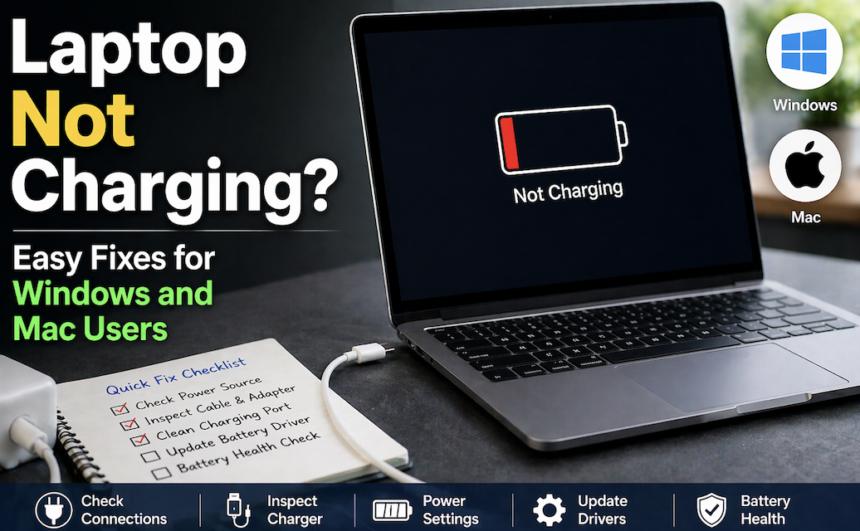
Few things create sudden panic like plugging in your laptop and seeing no battery response. You check the adapter, wiggle the cable, yet the screen remains dark, or the charge icon stays empty. This problem affects both Windows PCs and MacBooks, but the causes are often straightforward. Dust, loose connections, outdated software, or a temporary system glitch usually stop power flow. The good news: most fixes require no special tools or a technical degree. This guide walks through proven steps for each operating system. By the end, you will diagnose the issue yourself and likely restore charging within minutes. Let us bring that dead laptop back to life.
First Steps Before Diving into Software Settings
Before blaming the battery or motherboard, inspect physical components. A loose charger port or broken adapter mimics a serious hardware failure. Try a different power outlet. Swap the charging cable if available. For USB-C laptops, test the port with another device. Clean the charging area using a dry toothbrush. Lint and debris often block the proper connection. Also, remove the battery if your model allows external access. Press and hold the power button for fifteen seconds to drain residual electricity. Reattach everything and test again. These actions solve nearly thirty percent of reported charging failures. Only after checking hardware should you move to system-specific software solutions.
Why a Windows Laptop Stops Charging and How to Fix It
Windows devices frequently face driver conflicts or power management errors. The operating system sometimes misidentifies the AC adapter. A common scenario: the battery icon shows “plugged in, not charging.” This indicates the laptop recognizes the charger but refuses to draw power. Another reason involves battery wear. Most Windows laptops reduce charge capacity after two years. However, a software reset often bypasses temporary locks. Below are targeted fixes for Windows 10 and 11.
Reset the Embedded Controller Without Losing Data
Every Windows laptop contains an embedded controller (EC) managing power flow. Resetting it clears false charging signals. Shut down the machine completely. Unplug the charger. If the battery can be removed, take it out and press the power button for 30 seconds. Reinsert the battery, connect the charger, then turn on the device. This process restores the default power handshake between the hardware and the system. Many users report immediate success. No files or applications get erased. Perform this reset once a year as preventive maintenance.
Update or Roll Back Battery Drivers
Faulty drivers block charging communication. Open Device Manager by right-clicking the Start menu. Expand the “Batteries” section. Right-click “Microsoft AC Adapter” and choose Uninstall. Do the same for “Microsoft ACPI-Compliant Control Method Battery.” Shut down the laptop. Remove the charger for one minute. Plug it back in and restart. Windows automatically reinstalls fresh drivers. If the problem comes back after an update, try reverting the driver. Go to Properties > Driver tab > Roll Back Driver. This reverts recent changes, causing incompatibility.
Disable Battery Charge Limiting Features
Many Windows brands like Lenovo, Dell, and Asus include battery conservation modes. These features stop charging at 60% or 80% to extend lifespan. While useful, they confuse users into thinking a failure occurred. Open the manufacturer’s control software. Look for “Battery Health Charging,” “Power Management,” or “Conservation Mode.” Turn off any limit temporarily. If charging resumes, keep the feature disabled or adjust the threshold to a higher percentage. Explain this setting to family members to avoid future confusion.
Run the Built-In Power Troubleshooter
Windows includes automated repair tools for common issues. Go to Settings > System > Troubleshoot > Other troubleshooters. Find “Power” and click Run. The troubleshooter detects misconfigured power plans, sleep state conflicts, and adapter recognition errors. Follow on-screen instructions. This method solves problems without manual registry edits. After completion, restart the laptop. The troubleshooter works on both AC and battery power, so run it even when the laptop seems dead.
Addressing MacBook Charging Failures Without Panic
Apple laptops use a different power management architecture. Yet similar physical checks apply. MacBooks rely heavily on the System Management Controller (SMC) and software calibration. The latest M1 and M2 models handle charging differently from Intel versions. Below are step-by-step fixes for each type.
Reset the SMC on Intel-Based MacBooks
The System Management Controller handles battery charging, sleep mode, and thermal management. A corrupted SMC causes the Mac to ignore the charger. For MacBooks with the T2 chip (2018 and later Intel models): shut down the device. Press and hold the right Shift key, left Option key, and left Control key for seven seconds. Keep holding those keys, then press and hold the power button. Continue holding all four keys for another seven seconds. Release everything, wait a few seconds, then power on normally. For older Intel Macs without T2: shut down, then hold Shift + Control + Option and the power button for ten seconds. Release all keys, reconnect the charger, and start the Mac. The SMC reset never erases personal files.
Force Restart Apple Silicon M1/M2 MacBooks
Newer Macs with Apple silicon do not have a traditional SMC. Instead, a simple power cycle clears temporary glitches. Shut down the laptop. Close the lid for thirty seconds. Open the lid and press the power button once. Do not hold it. Let the Mac boot normally. If still not charging, check for macOS updates. Apple frequently releases patches addressing power delivery over USB-C. Go to System Settings > General > Software Update. Install any pending updates. After restarting, test the charger again.
Calibrate the Battery and Check Charging Ports
MacBook USB-C ports accumulate dust quickly. Use a non-metallic tool like a wooden toothpick to gently remove debris from each port. Avoid metal objects that could short-circuit the logic board. Next, perform a calibration for older Intel Macs. Charge the battery to 100%, then keep the charger connected for two hours. Disconnect and use the laptop until it sleeps due to low battery. Leave it off for five hours. Charge uninterrupted to full again. This recalibrates the battery gauge. For M1/M2 Macs, calibration happens automatically, but a full discharge once every two months maintains health.
Common Software Causes on Both Windows and Mac
Some charging issues stem from applications or operating system settings. A runaway process consumes more power than the adapter supplies. Video editing tools, games, or multiple browser tabs drain energy faster than a 45W charger can replenish. Close unnecessary programs. Lower screen brightness. Disable keyboard backlighting. If charging resumes slowly, upgrade to a higher wattage adapter. For Windows, check the power plan. Select “Balanced” or “High performance” instead of “Power saver.” On macOS, open Activity Monitor and sort by “Energy” to find greedy apps. Quit them immediately.
When to Replace the Battery or Seek Professional Help
Batteries naturally degrade. Most last three to five years. Signs of end-of-life include swelling, sudden drops from 50% to 0%, or a “Service Battery” warning. Windows users can generate a battery report. Open Command Prompt as administrator and type powercfg /batteryreport. The report shows design capacity versus full charge capacity. If full capacity falls below 70%, replacement becomes necessary. Mac users hold the Option key and click the battery icon. A “Replace Soon” or “Service Recommended” message confirms the need. Swollen batteries pose fire risks. Stop using the laptop immediately and contact a repair shop.
Conclusion
A laptop not charging on Windows or Mac feels stressful, but most cases resolve without expensive repairs. Start with physical checks: clean ports, test outlets, and inspect cables. Move to system-specific resets like the embedded controller for Windows or SMC for Intel Macs. Update drivers and disable battery limiting features. For Apple silicon, a simple shutdown and restart works wonders. If problems persist, generate a battery report to measure health. Replace aging batteries before they swell or fail completely. Remember that software resets never delete personal files, so experiment freely. Bookmark this guide for future reference. Your laptop likely has many years of service left, you just removed the power block standing in its way.
FAQ’s
Why does my laptop say plugged in but not charging?
This usually means the system detected the charger but halted power intake to protect battery health. On Windows, check manufacturer’s power management software. On Mac, reset the SMC. Also, verify that the ambient temperature is between 50°F and 95°F. Extreme cold or heat stops charging automatically.
Can a dead battery prevent a laptop from turning on?
Yes. Many laptops require at least five percent battery to boot. If the battery is completely dead, connect the charger and wait thirty minutes before pressing the power button. Some models also bypass a dead battery if the charger provides enough wattage. Use the original adapter rated for your device.
Does quick charging damage your battery in the long run?
Frequent fast charging generates extra heat, which slowly reduces long-term capacity. However, modern Windows and Mac laptops manage heat intelligently. Using the original fast charger occasionally causes minimal damage. For daily top-ups, a standard 45W or 60W adapter keeps the battery cooler and healthier.
How to test if the charger or port is broken?
Try the charger on another identical laptop model. If it works, your port may be damaged. Examine the port for bent pins or debris. On USB-C devices, flip the connector 180 degrees. One orientation may work if the pins are slightly misaligned. Also, a multimeter can test the DC adapter output voltage.
Will resetting software erase my personal files?
No. Resetting the SMC, EC, or power drivers never touches documents, photos, or installed programs. These actions only clear temporary hardware settings. For safety, save open work before performing any reset. But do not worry about losing precious data.