
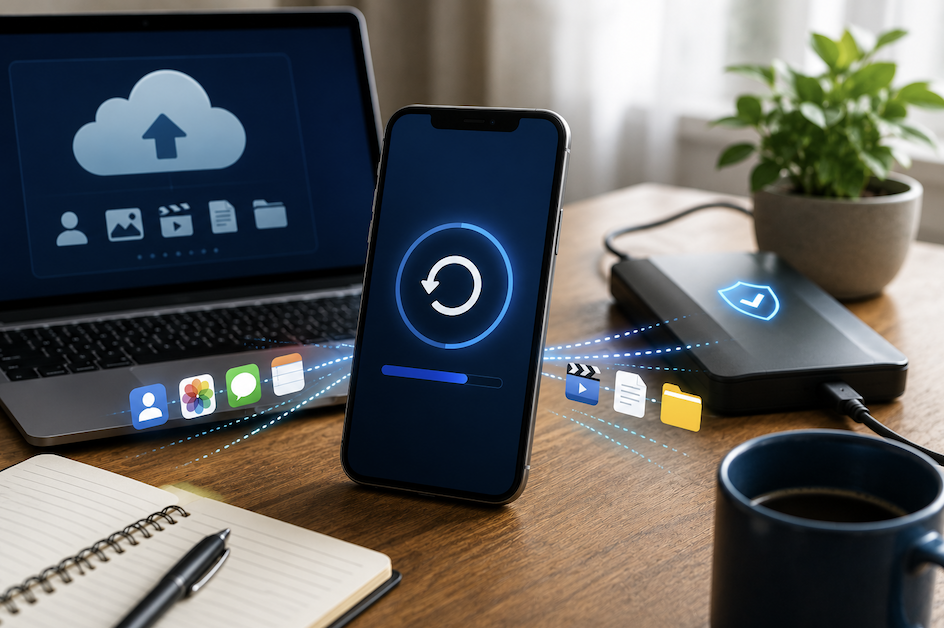
Losing a phone, whether through theft, damage, or a simple technical failure, becomes considerably less devastating when you have a genuine, reliable backup of your important data already in place. Despite how routine this precaution should genuinely be, many people go years without ever confirming their phone data is actually being backed up properly, discovering the gap only after it is genuinely too late. This guide walks through the practical steps for backing up your phone data reliably.
Why Phone Backups Matter More Than Many People Realize
Understanding the genuine range of data at risk if your phone is lost, stolen, or damaged helps explain why a proper backup deserves more attention than the passive assumption that “it probably backs up automatically” that many people quietly rely on without ever actually verifying.
- Photos and videos often represent genuinely irreplaceable memories that cannot be recovered once lost
- Contacts accumulated over years represent significant time and effort to rebuild manually
- App data, including messages and saved information within specific apps, can be genuinely difficult to recreate
- Documents and files stored directly on your device may not exist anywhere else if not properly backed up
This irreplaceability factor deserves particular emphasis for photos and videos specifically, since unlike a document you might be able to recreate or a contact you could potentially track down again, personal photos and videos capturing specific moments genuinely cannot be recovered once lost, making their backup a genuinely higher priority than many people initially treat it.
Understanding the Difference Between Cloud and Local Backups
Phone backups generally fall into two broad categories, and understanding the genuine trade-offs between them helps you choose an appropriate approach, or ideally combine both for the strongest overall protection.
- Cloud backups store your data on remote servers, accessible from anywhere with an internet connection
- Local backups store your data on a physical device you personally control, like a computer or external drive
- Cloud backups offer convenience and protection even if your physical devices are all lost or damaged simultaneously
- Local backups offer a genuine additional layer of protection independent of internet connectivity or a specific cloud provider
Using both approaches together genuinely provides the strongest overall protection, since relying exclusively on either method alone leaves a specific vulnerability. Cloud-only backups depend entirely on that specific service remaining available and accessible, while local-only backups could be lost alongside your phone if both were affected by the same physical event, like a house fire or theft.
Setting Up Reliable Cloud Backup for Your Phone
Most modern smartphones include built-in cloud backup capability, though ensuring it is actually configured correctly and genuinely covering what you expect it to cover requires deliberate verification rather than simply assuming default settings handle everything appropriately.
- Check your phone’s settings to confirm cloud backup is genuinely enabled, rather than assuming it is
- Verify exactly what specific data types your backup settings actually include, since defaults vary
- Confirm you have sufficient cloud storage space for everything you genuinely want backed up
- Periodically check that your most recent backup actually completed successfully, rather than assuming it did
This verification step genuinely matters, since backup failures, whether from insufficient storage space, connectivity issues, or other technical problems, can occur silently without any obvious notification, meaning you might genuinely believe your data is safely backed up while your actual backup has been failing for weeks or months without your awareness.
Setting Up a Local Backup as Additional Protection
Beyond cloud backup, creating a periodic local backup to a computer or external storage device provides genuine additional protection and independence from any single cloud service.
- Connect your phone to a computer periodically and use the manufacturer’s backup software
- Consider backing up to an external hard drive specifically dedicated to this purpose
- Establish a genuinely consistent schedule for these local backups rather than doing so sporadically
- Store any local backup device somewhere physically separate from where you typically keep your phone
What to Actually Include in a Comprehensive Backup
- Photos and videos, given their genuine irreplaceability if lost
- Contacts, ensuring you do not need to rebuild this information manually
- Important documents or files stored directly on your device
- App data for apps containing genuinely important information, like messaging or note-taking apps
- Device settings and preferences, reducing setup time if you need to restore to a new device
How to Verify Your Backup Is Actually Working
Simply enabling backup settings does not guarantee they are genuinely functioning correctly, making periodic verification a genuinely important habit rather than a one-time setup task you never revisit.
- Periodically check your cloud service’s storage interface to confirm recent data is genuinely present
- Look for any error notifications or warnings your phone might have generated regarding backup failures
- Consider doing a genuine test restore to a spare device, if available, to confirm your backup actually works
- Set a periodic reminder to check backup status, rather than assuming it will remain reliable indefinitely
Practical Tips for Maintaining Reliable Backups Over Time
- Connect to reliable Wi-Fi regularly, since many backup processes prefer or require this for large data transfers
- Keep your phone’s operating system updated, since backup functionality can be affected by outdated software
- Review and adjust your backup settings periodically, particularly after installing significant new apps
- Consider a password manager to help you remember cloud account credentials, since forgotten passwords can lock you out
Special Considerations When Switching to a New Phone
Backup practices deserve particular attention specifically during the process of switching to a new phone, since this transition represents both a genuinely important use case for your existing backup and an opportunity to verify everything transferred correctly before you genuinely rely on the new device exclusively.
Before wiping or setting aside your old phone, confirm that your new device genuinely has all the data you expect, including photos, contacts, and important app data, rather than assuming a successful transfer without actually checking. Keeping your old phone accessible for a reasonable period after switching, rather than immediately disposing of or wiping it, provides a genuine safety net in case something did not transfer as completely as expected during the initial setup process.
- Verify your new phone genuinely has all expected data before disposing of or wiping your old device
- Keep your previous phone accessible for a reasonable period as a safety net during this transition
- Double-check specific important items, like recent photos, rather than assuming a complete transfer
- This verification step provides genuine peace of mind during what is otherwise a routine, common transition
Final Thoughts
Backing up your phone data reliably requires more than simply assuming default settings handle everything automatically, involving genuine verification that backups are actually configured correctly and functioning as expected. Combining cloud backup convenience with the additional independence of periodic local backups provides the strongest realistic protection against the genuine possibility of losing irreplaceable photos, contacts, and other important data to an unexpected phone loss, theft, or failure.
Frequently Asked Questions
1. How often should I actually back up my phone?
Many cloud backup systems can be configured to back up automatically and continuously, which is generally preferable to manual, periodic backups, though supplementing with a manual local backup every few months provides genuine additional protection.
2. Will backing up my phone use a lot of my mobile data?
Backup processes are often configured to only run when connected to Wi-Fi specifically to avoid consuming mobile data, though it is worth checking your specific settings to confirm this configuration matches your actual preferences.
3. What happens if I run out of cloud storage space for backups?
Your backup will typically fail or stop including new data once storage capacity is reached, which is exactly why periodically checking your actual storage usage and either purchasing additional space or removing unnecessary old backups matters for maintaining reliable protection.
4. Can I back up my phone without using any cloud service at all?
Yes, local backups to a computer or external storage device provide an alternative that does not rely on cloud storage, though many people find combining both approaches provides more comprehensive, genuinely resilient protection.
5. Is it safe to store backups containing sensitive personal information?
Reputable cloud backup services generally include meaningful security measures like encryption, though using a strong, unique password and enabling two-factor authentication on your cloud account provides additional genuine protection for this sensitive, comprehensive data.