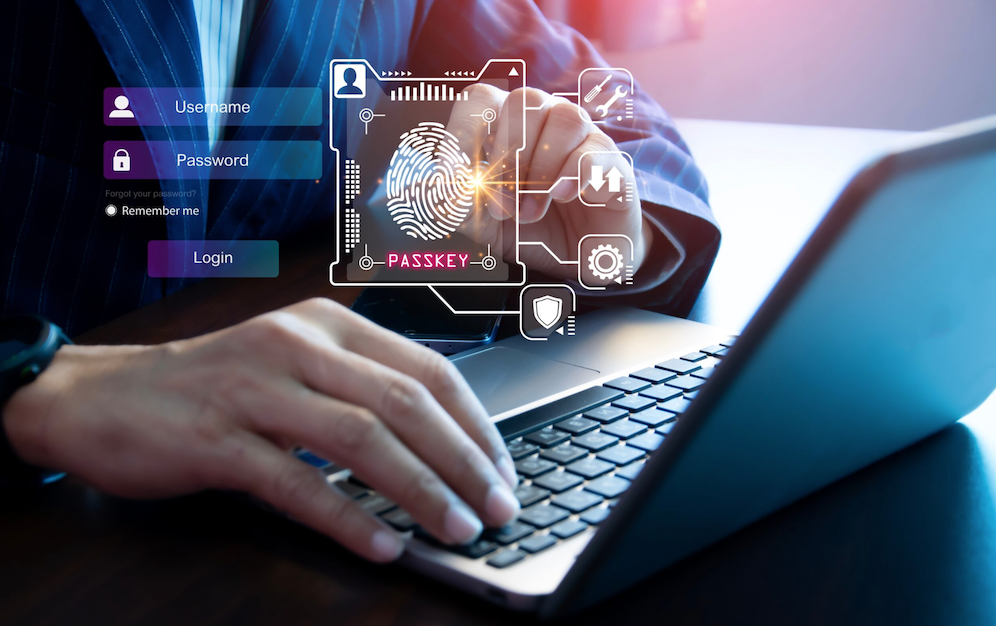
Passwords have been the default login method for decades, and they have also been the leading cause of account takeovers, phishing success, and forgotten-credential frustration for just as long.
Passkeys are a newer login standard built to remove the password from the equation entirely, relying instead on cryptographic key pairs tied to your device and biometric or PIN verification.
This guide covers how passkeys function behind the scenes, how they compare to passwords in daily use, and what to expect as more services shift toward this approach.
Breaking Down How Passkeys Work
A passkey is built on public-key cryptography, a method that has secured web traffic for years through protocols most people never see directly. When you create a passkey for an account, your device generates two mathematically linked keys: a private key that stays stored securely on your device and never leaves it, and a public key that is sent to the service you are signing up with.
Logging in later involves the service sending a challenge that only your private key can answer correctly, which your device handles automatically once you unlock it with a fingerprint, face scan, or PIN.
This structure removes the central weakness of password-based logins, which is that the password itself is a shared secret stored on a remote server. A data breach at a company that stores passwords can expose millions of credentials at once, but a passkey’s private key is never transmitted or stored anywhere but your own device, so there is no equivalent central secret for an attacker to steal in bulk. The public key alone, even if exposed, is not enough to let anyone log in without access to the matching private key on your physical device.
- Private key: A cryptographic key stored only on your device, used to prove your identity without ever being shared.
- Public key: A matching key sent to and stored by the service, used to verify a login attempt without revealing a secret.
- Challenge-response process: A login exchange where the service sends a prompt only your private key can answer correctly.
- Local unlock step: A fingerprint, face scan, or PIN that confirms you are the device owner before the private key is used.
- Platform authenticator: The built-in system on a phone, laptop, or security key that manages passkey storage and use.
This exchange happens in under a second in most cases, which is part of why passkeys feel faster than typing a password even though more cryptographic work is happening in the background. The service never sees your private key and never learns anything that could be reused to impersonate you elsewhere, because the mathematical relationship between the two keys only proves possession of the private key without exposing it.
This design is based on an open standard developed jointly by a group of technology companies and security researchers, which is part of why passkeys now work across a wide range of browsers, operating systems, and devices rather than being locked to a single company’s product line.
Comparing Passkeys to Traditional Passwords
Traditional passwords rely entirely on something you know, which makes them vulnerable to phishing, reuse across sites, and guessing when weak patterns are chosen. Passkeys instead rely on something you have, namely the device holding your private key, combined with something you are or know through the local unlock step. This combination is harder for a remote attacker to replicate, since gaining access would typically require physical possession of your device rather than simply tricking you into typing a password into a fake login page.
Phishing resistance is one of the clearest practical advantages. A passkey is bound to the specific website domain it was created for, so even a convincing fake login page cannot trick your device into sending a valid response, because the domain mismatch is detected automatically before any exchange takes place. Passwords, by contrast, can be typed into any page that looks close enough to the real one, which is why phishing remains one of the most common paths into a compromised account despite years of user education campaigns.
- Phishing resistance: Passkeys check the website domain automatically, blocking fake login pages that would fool a typed password.
- No shared secret to steal: A server breach cannot expose a password-equivalent secret, since the private key never leaves your device.
- No reuse risk: Each passkey is unique to one service, removing the danger of a reused password affecting multiple accounts.
- Faster login flow: A fingerprint or face scan typically completes a login faster than typing and submitting a password.
- No memorization burden: There is nothing to remember or forget, since the device itself handles the cryptographic proof.
Password managers have long been recommended as a way to reduce the risks tied to passwords, and they remain useful, but they still depend on a master password or a single point of access that an attacker could target directly. Passkeys shift the model entirely away from a secret that must be protected and toward a proof of possession that is checked fresh at every login. For a household or small business weighing whether to invest more time in password hygiene training or begin a shift toward passkeys, the long-term reduction in phishing exposure tends to make the second option a stronger use of limited security budget and attention.
Setting Up Passkeys on Your Devices

Creating a passkey usually starts from a service’s account security settings, where an option to add a passkey will prompt your device’s built-in authentication system. On a smartphone, this typically means a fingerprint or face scan confirmation, while a laptop might use a fingerprint reader, a PIN, or an external security key plugged into a port. Once created, the passkey is often synced across other devices signed into the same account ecosystem, such as a phone and laptop linked through the same operating system vendor account.
Cross-platform use is improving but still carries friction, especially when moving between an operating system vendor’s own sync system and a competing one. Scanning a QR code with a phone to approve a login on a separate laptop is a common fallback method that works across most combinations of devices, even when the two are not tied to the same account ecosystem. It is worth testing this flow once during setup, before you are relying on it urgently, so you know how to recover access if your primary device is unavailable.
- Account security settings: The starting point in most services for adding a passkey tied to your account.
- Biometric or PIN confirmation: The local step that authorizes passkey creation and later use on that specific device.
- Cross-device sync: Passkeys often sync automatically across devices signed into the same operating system account.
- QR code fallback: A cross-platform method for approving a login on one device using a scan from another.
- Multiple passkey registration: Adding a passkey on more than one device protects against losing access if a single device is lost.
Businesses setting up passkeys for employees face a somewhat different process than an individual adding one to a personal account. Many organizations route passkey enrollment through a managed identity platform, which allows an administrator to set policies around which devices are trusted and how a lost device is handled. Employees joining a company with this kind of system in place often complete passkey setup as part of onboarding, with a help desk team ready to assist if a device is replaced or a new employee needs their first passkey registered to a company account.
Common Compatibility Issues to Expect
Not every website or app has adopted passkeys yet, and support varies widely even among major platforms. Some services offer passkeys only as an additional option alongside a password rather than a full replacement, which means the underlying password-based system remains active and could still be targeted through other means such as a support desk social engineering attempt. Checking whether a service has fully retired password login, or merely added passkeys as a parallel option, clarifies how much security benefit you are really gaining.
Older devices and browsers present another layer of friction, since passkey support depends on both the operating system version and the browser handling the cryptographic exchange correctly. A device running an outdated operating system may be unable to create or use passkeys at all, forcing a fallback to a password or a different authentication method. Businesses and individuals managing a mix of older and newer hardware should expect a transition period where passkeys and passwords coexist rather than a clean, immediate switch for every account.
- Partial adoption: Some services keep passwords active alongside passkeys rather than retiring them fully.
- Outdated operating systems: Older device software may lack the components needed to create or use a passkey.
- Browser support gaps: Certain browsers handle the passkey exchange inconsistently, causing occasional login failures.
- Shared or work devices: Passkeys tied to a personal device can complicate logins on a shared or borrowed computer.
- Account recovery confusion: Support staff unfamiliar with passkeys may default to outdated password reset procedures.
Banking and government services have been slower than consumer technology companies to roll out passkey support, largely due to stricter regulatory review and legacy system constraints that take longer to update. A person who has adopted passkeys across most of their personal accounts may still find a handful of important services, such as a tax authority portal or a specific bank, requiring a traditional password for the time being. Keeping a password manager active for these remaining accounts, even while using passkeys everywhere else, is a reasonable way to manage this uneven rollout without sacrificing security on either side.
Protecting Accounts During the Transition

Most services that introduce passkeys still keep a password or a recovery method active in case a device is lost, which means the overall security of your account is only as strong as the weakest active login method. Leaving a weak, reused password active alongside a strong passkey does little to improve your real protection, since an attacker can simply target the password instead of the stronger option. Reviewing and strengthening any remaining password-based fallback, even after adopting a passkey, closes this gap rather than leaving it open.
Backup and recovery planning deserves close attention, since losing the device holding your only passkey without a backup method in place can lock you out of an account entirely. Registering a passkey on at least two devices, or keeping a documented recovery code stored somewhere safe, prevents a single lost or damaged device from becoming a full account lockout. This matters most for financial accounts and primary email, where recovery delays can cascade into other locked accounts tied to that same email address.
- Fallback password strength: A weak password left active alongside a passkey still leaves an exploitable entry point.
- Multi-device registration: Registering passkeys on two or more devices prevents a single point of failure.
- Recovery code storage: Keeping backup codes in a secure, separate location protects against total lockout.
- Email account priority: Securing your primary email first limits the damage from any single compromised account.
- Security key backup: A physical hardware key offers an additional, device-independent recovery option for critical accounts.
Family members who are less comfortable with technology benefit from a bit of extra planning during this transition period. Walking through the passkey setup process together, confirming that a trusted family member or friend is listed as a recovery contact where a service allows it, and writing down which accounts have switched to passkey-only login can prevent confusion later if that person needs help regaining access. This kind of groundwork matters more for older relatives or anyone who manages accounts for a family member, since recovery conversations become harder after a lockout has already happened rather than before.
Weighing the Risks and Limitations

Passkeys reduce several common attack paths, but they are not a complete solution to every account security risk. A device that is unlocked and in the wrong hands, whether through theft or a compromised operating system, could potentially allow passkey use by whoever holds it, depending on how the device’s own security is configured. This shifts the security conversation from protecting a memorized secret to protecting the physical device and its own unlock mechanism, which carries a different but still real set of risks.
Vendor lock-in is another consideration worth weighing before committing fully to passkeys across every account. Syncing passkeys through a single operating system vendor’s ecosystem is convenient, but it also ties your account access to that vendor’s continued service and your ongoing use of their devices. Anyone planning to switch away from a specific phone or laptop ecosystem should check in advance how passkeys transfer, or whether a manual re-registration process will be needed on the new platform.
- Device-level risk: An unlocked or compromised device shifts risk from a memorized secret to physical device security.
- Vendor ecosystem lock-in: Passkey sync tied to one vendor can complicate a future switch to a different device platform.
- Limited service adoption: Many smaller websites and services have not yet added passkey support at all.
- Enterprise rollout complexity: Organizations managing shared devices face added planning to deploy passkeys consistently.
- User familiarity gap: Unfamiliar prompts and terminology can lead some users to abandon setup partway through.
None of these limitations argue against adopting passkeys; they argue for adopting them with a clear sense of what still needs attention. A device left unlocked in a public place, a single point of sync tied to one vendor, or a service that has not yet fully committed to the standard are all manageable risks once you know to watch for them. Treating passkey adoption as one part of a broader security routine, rather than a single switch that removes the need for any other precaution, keeps expectations realistic as the technology continues to mature across more of the services you use every day.
Final Thoughts
Passkeys represent a real shift in how account security works, moving the burden away from memorized secrets and toward device-based cryptographic proof that is far harder to phish or steal in bulk.
The transition is not instant, and password-based fallbacks, partial service adoption, and device-level risks mean passkeys should be treated as a strong addition to your security practices rather than a single fix that eliminates every concern.
Registering passkeys on more than one device, keeping fallback passwords strong where they remain active, and testing recovery options before you need them will help you get the real benefit of this technology as more of the services you use continue to adopt it.
Frequently Asked Questions
Can someone steal my passkey the way they could steal a password?
No, not in the same way. A passkey’s private key never leaves your device and is never transmitted during login, so there is no equivalent secret that can be intercepted or stolen from a server breach the way a stored password can be.
What happens if I lose the device holding my passkey?
If you registered a passkey on more than one device, you can still log in from the other registered device. If only one device held the passkey, most services offer a recovery process, though it may take longer and involve identity verification steps similar to a traditional password reset.
Do passkeys work the same way across every browser and operating system?
Support has improved broadly, but behavior still varies somewhat between browsers and operating systems, especially for older software versions. Testing a passkey login on each device and browser combination you regularly use is a reasonable step to confirm consistent support.
Is a passkey more convenient than a password manager?
Many password managers now support generating and storing passkeys directly, which combines the convenience of centralized management with the security benefits of passkey technology. For users already comfortable with a password manager, adding passkey support there can offer a smooth transition rather than a separate, unfamiliar system.
Will passkeys fully replace passwords soon?
Adoption is growing steadily, but a full transition away from passwords will likely take years, since many smaller services and legacy systems have not yet built passkey support. Expect a long period where passkeys and passwords coexist across different accounts rather than a single clean cutover.
Are passkeys safe to use on a shared family computer?
Passkeys are tied to a specific device and the person who can unlock it, which makes them less suited to a model where multiple people share one login profile. Separate user profiles on a shared computer, each with their own passkey registration, work better than a single shared profile trying to hold multiple people’s passkeys.