

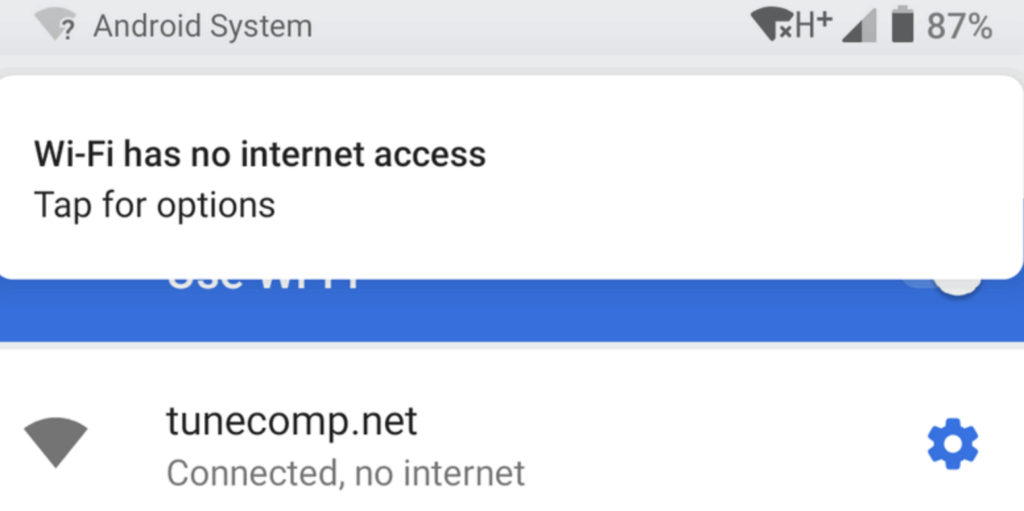
Your Android phone shows a full WiFi signal. The network name is right there. The password went in perfectly. And yet, nothing loads. No pages. No apps. No connection to the outside world. Just a silent, stubborn “Connected, no internet” status that makes no sense at all.
You are not alone. The wifi connected, but no internet fix android search is one of the most common troubleshooting queries on the planet, and that is because this issue happens to millions of Android users every single day. The frustrating part is that your phone is not actually broken. Something small has gone wrong somewhere in the chain between your device and the internet, and once you find it, the fix is usually quick.
This guide covers every proven solution in plain, simple language. No jargon, no guesswork. Work through the steps below, and you will almost certainly be back online before you finish reading.
Understanding the Android WiFi Connected No Internet Problem
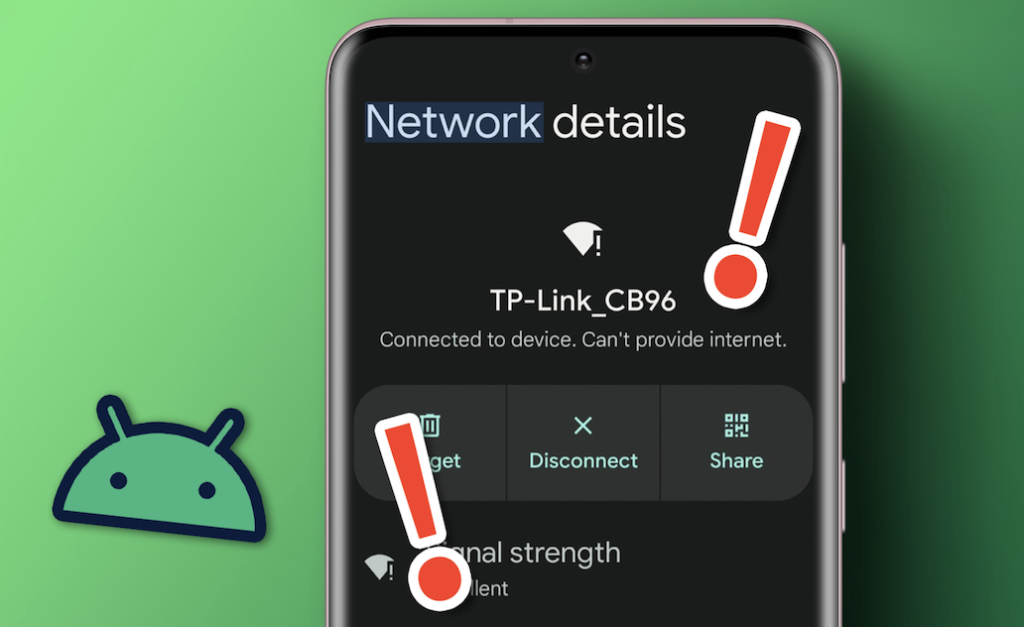
Before anything else, it is worth taking thirty seconds to understand what is actually happening. When your Android phone says it is connected to WiFi, it has successfully linked to your router. The local network is working. But between your router and the actual internet, something has broken down.
Think of it like this: your phone successfully walked through the front door of a building, but all the rooms inside are locked. You are in the building, but you cannot go anywhere.
The break can happen at several points in that chain:
- Your router has lost its own connection to the internet
- Your phone received incorrect network configuration details
- A DNS server is not responding, so addresses cannot be translated
- A background app is blocking or redirecting traffic
- Your phone’s saved network data has become corrupted
- Your Internet Provider Is Currently Facing an Outage: What You Need to Know
Start Here: The Three Fastest Wifi Connected but No Internet Fix Android Steps
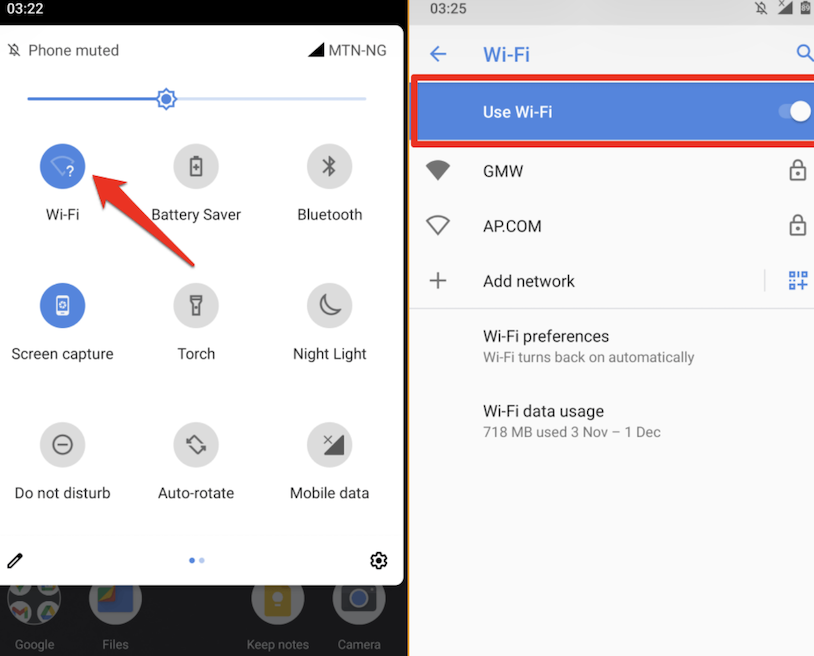
These three actions fix the problem in well over half of all cases. Try them first before moving on to anything more involved.
Step One: Toggle Your WiFi Switch
Pull down your notification panel from the top of your screen, then tap the WiFi icon to turn it off. Wait about five seconds, then tap it again to reconnect. This simple reset helps refresh your connection and quickly resolves most minor WiFi problems.
Step Two: Switch Airplane Mode On, Then Off
Airplane Mode shuts down every wireless radio on your phone simultaneously. Turning it on and then off again is like giving your entire connectivity system a reset button. Swipe down to access Quick Settings, tap Airplane Mode, wait ten seconds, then tap it again. Your phone will reconnect to WiFi automatically.
Step Three: Restart Both Your Phone and Your Router
Hold your power button and tap Restart. While the phone reboots, walk over to your router, unplug the power cable from the wall, and wait a full thirty seconds. Then plug it back in. Give your router two minutes to fully come back online before checking your phone. This step alone resolves the Android WiFi connected, no internet problem in a huge number of cases because it clears temporary memory faults on both devices at once.
Delete the Saved WiFi Network and Set Up a Fresh Connection
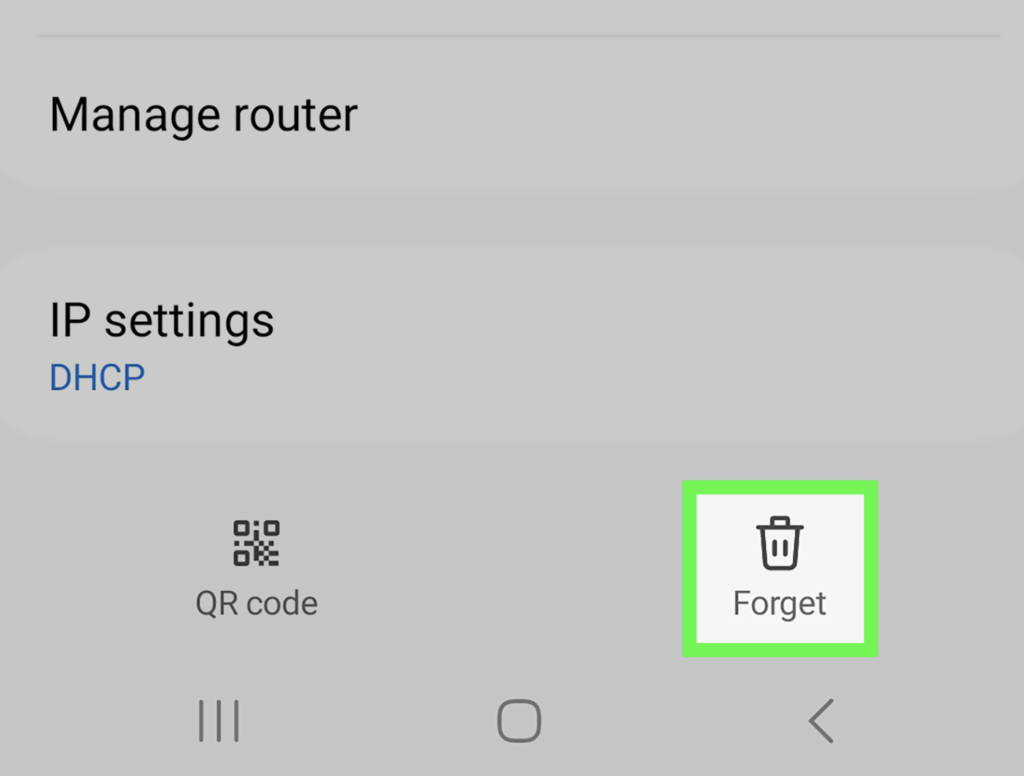
If restarting did not help, the information your phone saved about your WiFi network may have gone stale or corrupted. Removing that saved data completely and reconnecting fresh gives your device a clean starting point.
Follow these steps on your Android device:
- Open the Settings app
- Tap Network and Internet (some phones label this as Connections or WiFi)
- Tap WiFi to see all available networks
- Locate your network’s name in the list and simply tap on it to connect.
- Tap Forget or Disconnect and Forget
- Your phone will disconnect immediately
- Tap your network name in the list again, enter your password, and reconnect
Once reconnected, open a browser and try loading a webpage. If it works, that saved network data was the issue. If not, keep reading.
Upgrade to a Faster and More Stable DNS Server for Better Internet Performance
Every time you type a web address, your phone asks a DNS server to translate it into a numbered IP address. If the DNS server your router assigned to your phone is slow, unresponsive, or simply not working, every request fails, even though your WiFi connection itself is perfectly fine.
Switching to a well-known public DNS server is a straightforward WiFi connected but no internet fix for Android solution that works surprisingly often. Here is how to do it:
For Android 9 and Above: Use Private DNS
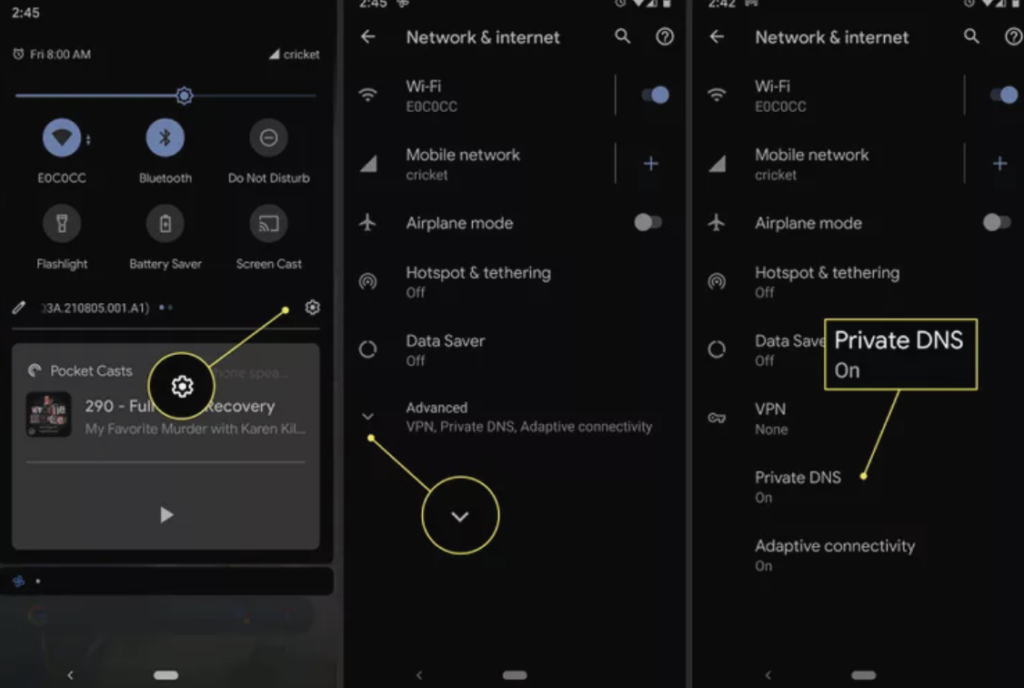
This is the easiest method on modern Android devices.
- Open Settings
- Tap Network and Internet
- Tap Advanced, then tap Private DNS
- Select the Private DNS provider hostname
- Type: one.one.one.one (Cloudflare) or DNS.Google (Google)
- Tap Save
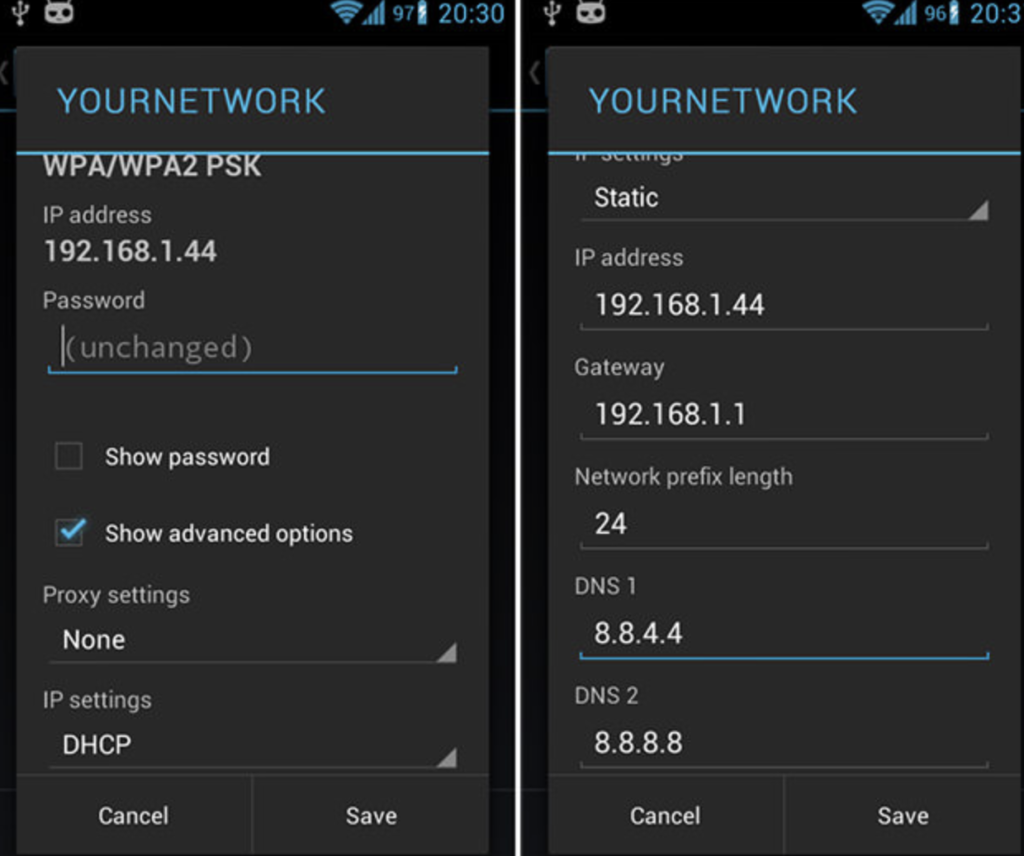
For All Android Versions: Change DNS in WiFi Settings
- Open Settings and go to WiFi
- Long-press your connected Wi-Fi network and choose Edit to update it
- Tap Advanced Options
- Change IP Settings from DHCP to Static
- In the DNS 1 field, type: 8.8.8.8
- In the DNS 2 field, type: 8.8.4.4
- Tap Save and wait a few moments for the settings to apply
Both of those DNS addresses belong to Google and are available around the clock. Cloudflare’s addresses (1.1.1.1 and 1.0.0.1) work just as well and are often faster.
How to Reset Network Settings on Your Android Device for a Fresh Start
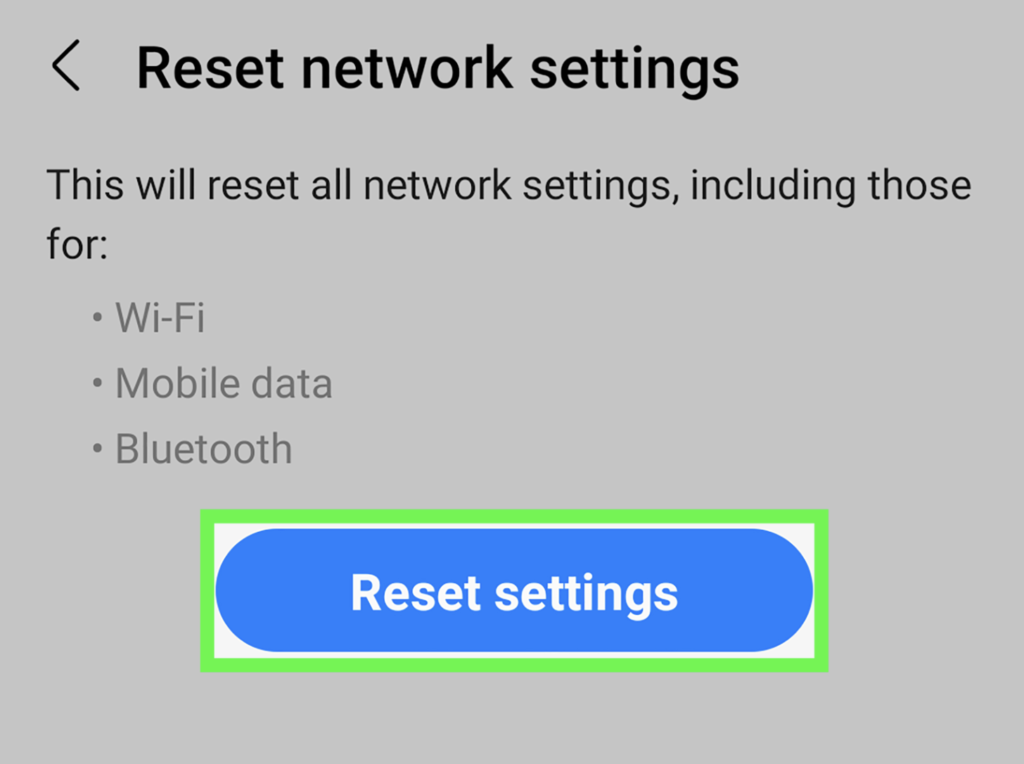
When individual fixes have not solved the Android WiFi connected, no internet problem, a network settings reset is your next best move. This option wipes all stored WiFi passwords, cellular settings, and Bluetooth connections, returning everything to how it was when the phone was brand new.
Your photos, apps, messages, and personal files stay completely untouched. Only the network-related settings are cleared.
- Open Settings
- Go to System and then Reset Options (Samsung users: go to General Management, then Reset)
- Tap Reset WiFi, Mobile, and Bluetooth, or on some phones, Reset Network Settings
- Read the confirmation screen, then tap Reset Settings
- Your phone will restart automatically
- Reconnect to your WiFi network using your password and test the connection
This step solves a surprisingly large number of stubborn cases because it clears configuration errors that have built up over months of updates and app installations.
Find Out If an App Is Causing the Problem
Sometimes the wifi connected, but the no internet fix android solution has nothing to do with settings at all. A misbehaving app, particularly a VPN, a firewall app, or an aggressive battery saver, can intercept your traffic and quietly break your internet without any obvious error message.
Disable Your VPN
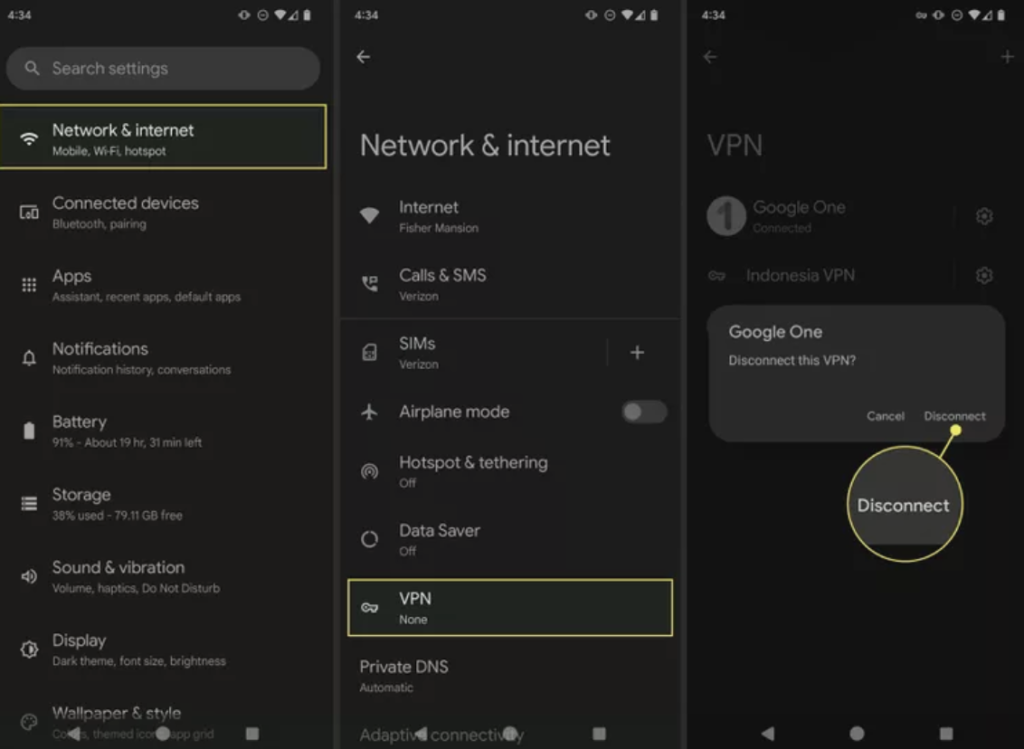
If you have a VPN app installed and running, turn it off completely. VPNs route your traffic through external servers, and if that server is down or misconfigured, your internet stops working even though your WiFi shows as connected. Open the VPN app and tap Disconnect, or go to Settings, Network and Internet, and tap VPN to disconnect from there.
Test in Safe Mode
Safe Mode runs your Android phone using only its built-in, manufacturer-installed apps. All downloaded apps are temporarily disabled. If your internet works perfectly in Safe Mode, a third-party app is definitely responsible.
To access Safe Mode, press and hold the Power button, then tap and hold the Restart or Power Off option on the screen until the Safe Mode prompt appears. Tap OK to confirm. While in Safe Mode, test your internet connection. When you’re ready to leave, just restart your phone normally.
If Safe Mode fixes the issue, go back to your normal mode and uninstall recently added apps one at a time, testing your connection after each removal until you identify the culprit.
Is It Your Router or Your Internet Provider: Not Your Phone?
Before spending more time troubleshooting your Android device, take one minute to rule out the router and your ISP entirely. Grab another device, a laptop, a tablet, or a different phone, and connect it to the same WiFi network. Open a webpage on that device.
If the second device also has no internet, your Android phone is not the problem. The issue is either your router or your ISP.
Router Troubleshooting
Check the indicator lights on your router. Many routers feature a dedicated Internet or WAN light. If this light is red, amber, or not lit, it means your router has lost its upstream connection. To resolve this, perform a factory reset by pressing and holding the small Reset button on the back of the router with a pin or paperclip for about fifteen seconds until the lights flicker and the device restarts.
Check for an ISP Outage
Use your mobile data to visit your internet provider’s website or social media page and look for service updates. You can also search your provider’s name plus the word “outage” to find real-time reports from other customers in your area. If there is a known outage, no amount of device troubleshooting will help; you simply have to wait for it to be resolved.
Final Thoughts
The Android WiFi connected, no internet problem, feels far worse than it actually is. In most cases, the fix takes less than five minutes and does not require any technical skill whatsoever. A simple restart, a forgotten network, or a DNS server change is all it takes.
Work through the solutions above from top to bottom, and you will find your answer. Start with the quick toggles, move to forgetting and rejoining the network, then try the DNS fix, and use the network reset as your safety net. By the time you reach the router and ISP checks, you will almost certainly already be back online.
FAQ’s
Why does my Android keep saying connected but no internet?
Your phone has joined the local router network, but the router itself cannot reach the internet. This is usually caused by an ISP issue, a router fault, or incorrect DNS settings on your phone. Restart your router and phone first, then try the DNS change steps if the problem comes back.
Does resetting network settings erase my photos or apps?
No. A network reset only clears saved WiFi passwords, Bluetooth pairings, and mobile network configurations. Everything else, your photos, apps, contacts, and files, remains exactly as it was.
My laptop works on WiFi, but my Android does not. Why?
When other devices work fine, the problem is specific to your phone’s configuration. The most likely causes are a corrupted saved network, a wrong DNS setting, or a background app interfering with connections. Try forgetting the network, rejoining it, and then changing DNS settings.
Is it safe to use Google or Cloudflare DNS on my Android?
Yes, both are completely safe and widely used around the world. Google DNS (8.8.8.8) and Cloudflare DNS (1.1.1.1) are reliable, fast, and free. Cloudflare is particularly noted for its privacy-first approach and does not log personal data.
What if none of these steps fix the Android WiFi connected, no internet problem?
If every step in this guide has failed, contact your ISP first to rule out a service issue on their end. If the ISP confirms everything is fine on their side, visit an authorized service center for your phone brand. In rare cases, a hardware fault with the WiFi antenna can cause this issue, which requires a physical inspection.