Microsoft stopped shipping security updates for Windows 11 version 24H2 on the Home and Pro editions this week, and plenty of home computers are still sitting on that build without anyone noticing. A PC that no longer receives fixes keeps working, which is exactly why the problem is so easy to ignore.
In this article we will explore who is affected, how to check your own version in a minute, what being unsupported means in practice, and how to move to a supported release without losing your files.
Support for 24H2 Home and Pro ended on Patch Tuesday
On October 13, 2026, the October Patch Tuesday release became the last security update for Windows 11 version 24H2 on the Home and Pro editions, according to a Microsoft notice reported by BetaNews. From that day those editions stop receiving the monthly security updates and the optional preview updates that normally deliver fixes ahead of the next cycle. The operating system will still start, open your documents and connect to the internet, so nothing visibly breaks on the day.
That quiet behavior is the real hazard. Windows does not flash a red banner when a build leaves support, and most people only notice a problem after something has already gone wrong. A useful comparison is a car whose manufacturer has stopped sending recall notices: it drives exactly as before, but any flaw found from now on stays unrepaired on your machine.
Microsoft’s recommendation, as relayed by BetaNews and Windows Latest, is that Home and Pro users on 24H2 move to Windows 11 version 25H2 so that monthly updates keep arriving. The step is a move to a newer release of the same operating system family, not to a different product. If your PC was able to run 24H2, it is reasonable to expect that it can take the newer release, though a quick compatibility check in Windows Update will confirm that for your own machine.
This article is written mainly for households, students, freelancers and small offices that run Home or Pro. If you manage a company fleet, the dates and options in the next section matter even more, and your IT team or reseller will likely already be handling them. Microsoft’s lifecycle dates are not country-specific, although the speed at which Windows Update offers the newer release to a given PC can differ from one device to another.
Consider what this looks like in an ordinary home. A family laptop used by two parents and two children collects saved passwords, school documents, tax paperwork and years of photos. Nobody in the house thinks of it as a target, yet it is exactly the kind of machine that attackers like, because it holds a lot of personal information and is usually protected by habit rather than by care. A one-hour job this week removes that exposure for the next year.
A word on timing is also in order. The deadline has already passed, but that does not mean you must act within minutes. The risk grows month by month, since each new Patch Tuesday after October exposes more details about flaws that your machine will not receive fixes for. A sensible target is to finish the move within the next couple of weeks, which leaves time for a backup, a calm installation and a few days of checking that everything works.
Editions and versions on the calendar
The first thing to grasp is that the October 13 date does not hit every copy of Windows 11 24H2 equally. Microsoft ties support to the edition as well as the version number, so two neighbors who both say they run 24H2 can be in very different positions.
Home and Pro on 24H2
These are the editions that reached the end of updates on October 13. Almost every consumer laptop and most self-built desktops fall into this group, along with many small-business machines that were bought with Pro for features such as remote desktop hosting or disk encryption management. If you are in this group, the action is simple in principle: move to 25H2.
Enterprise and Education on 24H2
Windows 11 24H2 Enterprise and Education stay supported until October 12, 2027, a full year longer. Schools, universities and large employers often run these editions because they need time to test software before a feature update lands on thousands of machines. If your laptop was issued by an employer or a school, check with their support desk before you do anything yourself, since they may manage the timing and may block self-service upgrades.
Windows 10 Enterprise LTSB 2016
The same October 13 date also closes support for Windows 10 Enterprise LTSB 2016. Microsoft advises people on that long-term servicing release to move to Windows 11 Enterprise LTSC 2024, and it notes that Extended Security Updates exist for organizations that need more runway. This group is mostly industrial controllers, medical equipment, point-of-sale terminals and other fixed-purpose systems, so it is rare in a living room but common in a workshop or clinic.
The calendar at a glance
The table below puts the reported dates side by side. It is a quick reference, not a substitute for checking your own edition.
| Edition and version | End of updates | Suggested direction |
| Windows 11 24H2 Home | October 13, 2026 | Move to 25H2 |
| Windows 11 24H2 Pro | October 13, 2026 | Move to 25H2 |
| Windows 11 24H2 Enterprise | October 12, 2027 | Follow your IT department |
| Windows 11 24H2 Education | October 12, 2027 | Follow your school or institution |
| Windows 10 Enterprise LTSB 2016 | October 13, 2026 | Move to Windows 11 Enterprise LTSC 2024, or use Extended Security Updates through your organization |
Finding the version on your own PC
Plenty of people do not know which Windows release they run, and that is perfectly normal. Microsoft rarely shows the version prominently, and the name on the sticker or in the shop listing may be years out of date. Two methods take under a minute each.
The winver shortcut
Press the Windows key and the R key together, type winver and press Enter. A small window opens that names the edition, such as Home or Pro, and gives the version, such as 24H2, along with the build number. If you see 24H2 and Home or Pro, you are in the group that just left support. If you see 25H2 or a later release, you are already on a supported build and can skip ahead to the sections on keeping it healthy.
Through Settings
Open Settings, choose System, scroll down to About and look under Windows specifications. The same edition and version fields appear there, and you can copy them with one click, which is handy if you need to describe your PC to a support person. The About page also lists the installed memory and processor, which is useful for the preparation steps later in this article.
Checking Windows Update
After you know your version, open Settings, choose Windows Update and press the button to check for updates. If a newer feature release is offered to your machine, Windows normally shows it as an item with a download and install option, sometimes with a short description. If nothing is offered yet, do not assume that something is wrong. Windows often releases a new feature update to PCs in waves, beginning with machines that have the fewest known issues, so a device can sit on a quiet screen for days or weeks.
A simple test I recommend is to check twice, a few days apart, before you go looking for workarounds. If the newer release still has not appeared after a couple of weeks and your PC is otherwise healthy, look for a compatibility notice in the Windows Update page and in the Windows Security app, because those places usually state when a driver or a piece of software is holding the upgrade back.
Life on an unsupported build
It is worth being honest about what the end of updates does and does not mean, because the internet tends to swing between panic and shrugging. Your PC will not shut down, your files will not be locked, and your programs will not stop opening. What stops is the flow of fixes for newly found security flaws in Windows itself.
Every month, security researchers and attackers alike find new weaknesses in software that millions of people use. Microsoft responds by shipping patches on Patch Tuesday, and criminals then study those patches to work out where the flaw was and to build attacks aimed at anyone who has not applied them. On a supported PC the gap between discovery and repair is short. On a PC that has left support, the gap grows with every month, and the machine becomes an easier target than its patched neighbors.
The risk is not evenly distributed. A PC that is used for banking, online shopping, work email and family photos carries more at stake than a spare machine that only plays offline music. Browsing habits also matter: most successful attacks against home users arrive through a malicious attachment, a fake login page or a booby-trapped download, not through some exotic technique. Keeping your browser, your security software and your other applications up to date reduces that exposure, but it cannot replace the fixes Windows itself no longer provides.
There is a second, quieter cost. Over time, software and hardware makers tend to test only against supported versions of Windows. A printer driver, a banking app or a game launcher may keep working for a while on an old build and then start misbehaving, and the support person on the other end of the phone will ask you to update first. Staying on an unsupported release therefore tends to turn small annoyances into larger ones.
Small businesses face a further layer. If you run a Pro machine in a shop, a studio or a home office that handles customer details, the loss of updates can collide with obligations that exist outside Microsoft’s own rules. Insurance policies, payment-card requirements and data protection laws often expect that systems are kept in a supported state, and the details vary by country and by contract. Check with your insurer, your accountant or an IT professional before assuming that an unsupported machine is acceptable for business use.
I would also caution against the idea that running antivirus alone is enough. Security software is a valuable layer, and Windows has its own built in, but a security product sits on top of the operating system and cannot repair holes in the operating system’s own code. Treat it as a second line of defense, not a replacement for the first.
Preparing the machine before you upgrade
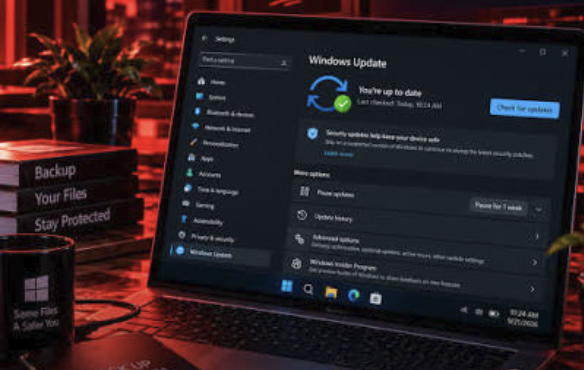
Most feature updates go smoothly, and the most common outcome is a restart or two and a familiar desktop afterwards. Still, any change that touches the operating system deserves a few minutes of preparation, and those minutes are cheap compared with the hours you would spend recovering from an unlucky failure.
Back up what you cannot replace
Copy your documents, photos and anything else that would hurt to lose to an external drive or a cloud service that you trust. The key word is copy: a file that exists in only one place is not backed up, even if that place is a cloud folder that syncs deletions. A good rule is to have one copy on the PC, one on a separate device in your home and one stored elsewhere, such as an online service. If you use a browser password manager, make sure you can sign in on another device before you begin, so that a surprise on the PC does not lock you out of your accounts.
Free space and steady power
Feature updates need working room on the system drive, and a nearly full drive is the most common reason an installation stalls or rolls back. Clear out old downloads and uninstall programs you no longer use before you start. On a laptop, plug in the charger and leave it connected until the process finishes, because a battery that dies mid-install can cause avoidable trouble.
Drivers, accessories and software
Take note of anything that is more than a simple mouse and keyboard: a graphics card with its own control panel, a scanner, a drawing tablet, specialized audio gear, or accounting software tied to a licence. Visit the maker’s support page for each and look for any statement about compatibility with the newer Windows release. If a product has been discontinued, test it as soon as you can after the upgrade rather than discovering a problem on the morning you need it.
Accounts, licences and sign-in details
Before you begin, make sure you know your Microsoft account password and that its recovery options, such as a phone number or a backup email address, are current. If you use a PIN or a fingerprint to sign in, remember that those depend on the account behind them. Write down any software licence keys that are not stored in an online account, and check that disk encryption, if you use it, has its recovery key saved somewhere other than the PC itself. These small items are the ones that turn a routine update into an evening of frustration when they go missing.
Afterwards, look around
After the update finishes, run Windows Update once more, since additional patches are sometimes waiting, and then spend ten minutes opening the programs you rely on. Check that your printer prints, that your backup software still runs, and that your security software reports a healthy status. If something is clearly wrong, Windows includes a way to go back to the earlier version for a limited time after an upgrade, so avoid deleting the old installation files until you are satisfied.
Enablement packages and the 26H2 detail
You may notice that this month’s feature update, version 26H2, is described as a small download. Reporting on Microsoft’s notes puts the package at about 174 KB on x64 PCs, a figure that sounds like a typing error until you learn how the mechanism works. It is an enablement package: instead of replacing the whole operating system, it switches on features that were already delivered in an earlier monthly update and left dormant.
The condition for this approach is that the PC already sits on the matching servicing base. In plain terms, the machine must already have received the underlying code through regular updates, and the small package then flips the switch and moves the version label forward. A PC that is far behind on updates does not meet that condition, which is another reason why catching up on monthly patches matters.
There is one named exception worth noting. Windows 11 26H1 will not receive 26H2, according to the reporting. That version number belongs to a separate servicing track, and if you ever see 26H1 in winver, you should not expect the same upgrade path as the one described for 24H2 and 25H2. Most home PCs will not be in that situation, and the practical message is to read your own version carefully instead of guessing from the year.
For ordinary readers the lesson is straightforward: do not judge the size of a feature update by the size of the download, and do not skip a monthly update on the theory that it is minor. The small package works only because the larger monthly updates came first.
A practical consequence follows for people who like to postpone updates. Pausing updates for a few weeks is a legitimate choice when a new release has a reputation for problems, but a long habit of postponing can leave a PC without the foundation that later enablement packages require. If your machine has been paused for months, lift the pause, let it catch up, and restart whenever Windows asks. It is dull advice, and it prevents most of the strange upgrade failures that readers describe.
Secure Boot certificate: a check, not a panic
Windows Latest also draws attention to a date that falls just days after the end of support: October 19, when the Microsoft Windows Production PCA 2011 Secure Boot certificate expires. Secure Boot is a firmware feature that checks that the software loaded at startup is signed by a trusted authority, and certificates in that chain do have limited lifetimes. This is a single-source report, so treat the details with care.
The sensible response is to check and to follow Microsoft’s own guidance, not to worry. Windows Latest says you can look in the Windows Security app under Device security and open the Secure Boot section to see the status your PC reports. If Microsoft publishes updates that address the certificate, install them through Windows Update, and if you are unsure what the screen means, ask the PC maker’s support or a qualified technician instead of changing firmware settings on a hunch.
One point deserves emphasis. Do not turn off Secure Boot, install tools from random websites or edit firmware options in response to a social media post about this date. Those moves create more risk than they remove. Applying official updates and reading Microsoft’s notes is the whole job here, and it fits neatly alongside the upgrade you are already planning.
A sensible order of choices
If you have limited time, the order of steps matters more than speed. The sequence below suits most households, and it works whether you are doing this today or at the weekend.
First, confirm what you have
Run winver, write down the edition and version, and decide which row of the table earlier in this article describes you. If you are on Home or Pro 24H2, your path is clear. If you are on a work or school machine, stop and talk to the people who manage it.
Second, protect your files
Make a backup, then check that you can open a few files from it. A backup you have never tested is a hope rather than a plan. This step takes as long as your data takes to copy, so start it first and do the rest while it runs.
Third, update through the normal route
Open Windows Update, install any pending monthly updates, restart, and then look for the offer of 25H2. Take the official route offered by Windows instead of downloading a third-party tool, because the built-in process checks your hardware and your drivers for you. If the offer has not appeared, wait a few days and check again before trying anything else.
Fourth, handle the machines that cannot move
If a PC will not take the newer release for a clear reason, such as an unsupported processor or a driver that blocks the upgrade, decide deliberately. You can replace the machine, you can keep it offline for non-sensitive tasks, or, for organizations, you can ask about Extended Security Updates. What you should avoid is leaving it connected to your email and banking while it quietly ages.
Think about the whole household
If several PCs live under one roof, list them all, including the old laptop in a drawer and the machine a relative uses on visits. It is common to fix the main computer and forget the others, and the neglected ones tend to be the least protected. A short note on paper with each machine, its version and the date you checked it makes the yearly review quick.
Finally, set a reminder
Feature releases arrive on a yearly rhythm, and each one has its own end date. Put a note in your calendar to check your version again next autumn, and make the question part of your yearly routine, alongside renewing insurance or checking smoke alarms.
Read more about Techsipra
Frequently Asked Questions
Will my PC stop working after October 13?
No. Your PC will keep starting and running programs as before. What stops is the delivery of monthly security and preview updates for Windows 11 24H2 Home and Pro.
How do I check which Windows 11 version I have?
Press the Windows key and R, type winver and press Enter. You can also open Settings, choose System and then About. Both show the edition and version.
Is Windows 11 25H2 a free upgrade for 24H2 Home and Pro?
Microsoft recommends 25H2 for these users, and it arrives through Windows Update on eligible machines. Microsoft has not announced a separate charge in the reporting I reviewed, but confirm on your own Windows Update screen.
Can I keep using 24H2 if I stay offline?
An offline PC is much harder to attack, so for a spare machine that never connects it is a reasonable choice. Once you plug it into a network or insert unknown USB drives, the risk returns.
Do Enterprise and Education editions have the same deadline?
No. Windows 11 24H2 Enterprise and Education stay supported until October 12, 2027. Check with your employer or school, since they often control the update timing.
Is the Secure Boot certificate expiry something I need to fix myself?
Not by editing firmware. Check the Secure Boot status in the Windows Security app and install any official Microsoft updates that arrive.